import type { Metadata } from 'next'; import { TipBox } from '@/components/docs/shared/TipBox'; import { Table } from '@/components/docs/shared/Table'; import { CodeBlock } from '@/components/docs/shared/CodeBlock'; import { LivePreview } from '@/components/docs/shared/LivePreview'; import { DocPage } from '@/components/docs/layout/DocPage'; import { JsonLd } from '@/components/seo/JsonLd'; import { createDocsMetadata, DOCS_PAGES } from '@/config/docs-seo'; import { createBreadcrumbSchema, createTechArticleSchema } from '@/config/docs-schema'; import { Hero, SectionHeader, InlineCode } from '@/components/docs/blocks'; const PAGE = DOCS_PAGES['guide-placeholder-images']; export const metadata: Metadata = createDocsMetadata(PAGE); const breadcrumbSchema = createBreadcrumbSchema([ { name: 'Home', path: '/' }, { name: 'Documentation', path: '/docs/' }, { name: 'Guides', path: '/docs/guides/' }, { name: 'Placeholder Images', path: '/docs/guides/placeholder-images/' }, ]); const articleSchema = createTechArticleSchema(PAGE); const tocItems = [ { id: 'what-this-guide-covers', text: 'What This Guide Covers', level: 2 }, { id: 'how-to-create-placeholders', text: 'How to Create Placeholders', level: 2 }, { id: 'quick-start', text: 'Quick Start', level: 2 }, { id: 'organizing-placeholders', text: 'Organizing Placeholders', level: 2 }, { id: 'prompt-tips', text: 'Prompt Tips', level: 2 }, { id: 'light-mode-placeholders', text: 'Light Mode Placeholders', level: 2 }, { id: 'dark-mode-placeholders', text: 'Dark Mode Placeholders', level: 2 }, { id: 'placeholder-image-examples', text: 'Placeholder Image Examples', level: 2 }, { id: 'file-based-workflow', text: 'File-based Workflow', level: 2 }, ]; export default function PlaceholderImagesGuidePage() { return ( <> {/* What This Guide Covers */}
What This Guide Covers

Two ways to generate placeholder images with Banatie:

  • Live URLs {' '} — describe what you need right in <img> src URLs
  • API generation {' '} — full control, permanent URLs, downloadable files

All examples on this page use real placeholder image URLs generated by Banatie.

{/* How to Create Placeholders */}
How to Create Placeholders

Templates

Choose a style, get quality results. Banatie enhances your simple prompt based on the selected template:

  • photorealistic — photo-quality images
  • digital-art — stylized illustrations
  • 3d-render — 3D graphics

View all templates →

Simple Prompts

Write minimal descriptions. Templates handle the rest:

  • "office" becomes a detailed modern office with proper lighting
  • "headshot" becomes a professional portrait with studio background

No need for complex prompts — this is for placeholders, not art.

{/* Quick Start */}
Quick Start

Live URLs let you generate images by describing what you need right in the URL. No API calls, no file management — just an HTML placeholder image tag with your prompt. Each unique prompt is cached, so subsequent loads are instant via CDN.

Basic URL format:

Example:

`} language="html" filename="HTML Placeholder Image" />

Result:

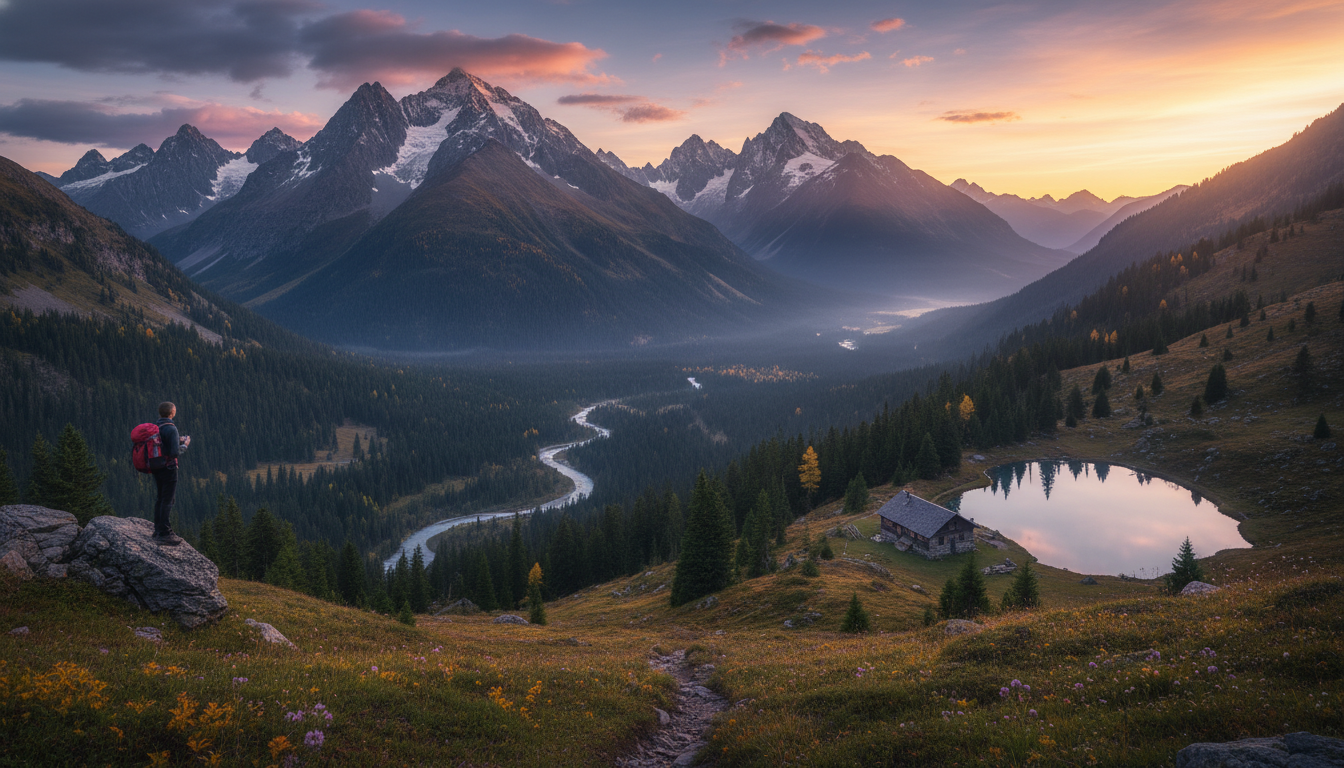
Mountain landscape

Parameters:

prompt, 'Yes', 'Image description (URL-encoded)'], [ aspectRatio, 'No', 'Ratio like 1:1, 16:9, 4:3 (default: 16:9)', ], [template, 'No', 'Style template name'], ]} />

For full parameter reference, see{' '} Live URLs documentation .

{/* Organizing Placeholders */}
Organizing Placeholders

Organize images by sections of your site using scopes:

Learn more about scopes in{' '} Live URLs documentation .

{/* Prompt Tips */}
Prompt Tips

Write less, not more

For placeholders, simple prompts are often enough. You can always add more details later if needed. Templates handle the rest:

  • Want an office? Write{' '} office
  • Need a dark version? Add{' '} office dark background
  • Templates handle lighting, composition, style

Colors and themes

Control the mood with color hints:

Templates automatically enhance your prompts. A simple description becomes a detailed generation instruction.
{/* Light Mode Placeholders */}
Light Mode Placeholders

Generated images work well with light interfaces by default. If you need more control, specify background colors or accents to match your design system.

Light theme placeholder

Clean Workspace

White background, natural lighting

{/* Dark Mode Placeholders */}
Dark Mode Placeholders

For dark interfaces, add dark background or descriptive words like night, moody, or twilight. You can also specify accent colors.

Dark theme placeholder

Dark Gradient

Dark background with purple accents

{/* Placeholder Image Examples */}
Placeholder Image Examples

Copy-paste examples for common placeholder image use cases.

{/* Avatar */}

Avatar

1:1 · User profiles, team sections, testimonials

Sarah Chen

Banatie cut our design mockup time in half. No more hunting for stock photos.

Sarah Chen

Product Designer at Acme

`} language="html" />

Team grid example:

Alex Rivera

Alex Rivera

Engineering Lead

Maria Santos

Maria Santos

Design Director

James Wilson

James Wilson

Product Manager

{/* Product */}

Product

1:1 or 4:5 · E-commerce, catalogs, listings

Wireless Pro Headphones

Wireless Pro Headphones

$299

`} language="html" />

Product grid example:

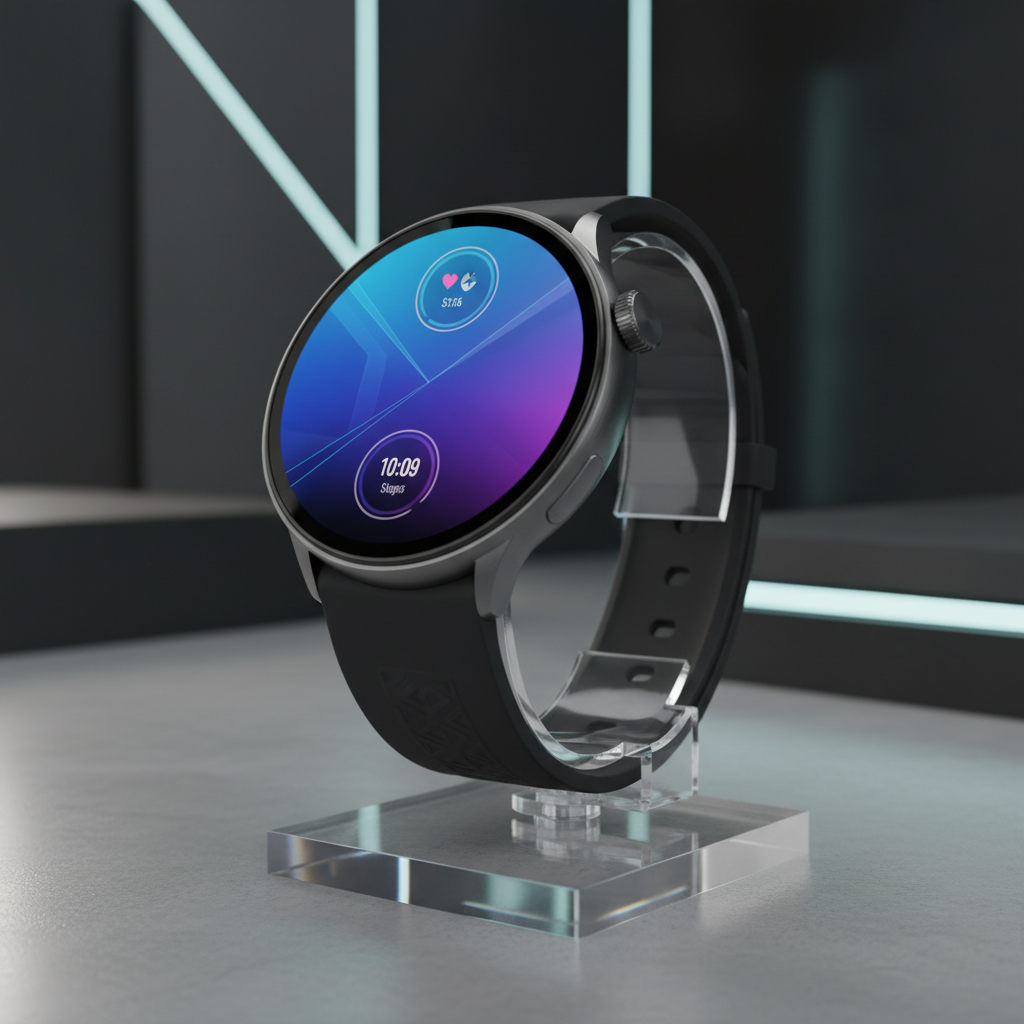
Smart Watch X1

Smart Watch X1

$199

Wireless Earbuds

Wireless Earbuds

$249

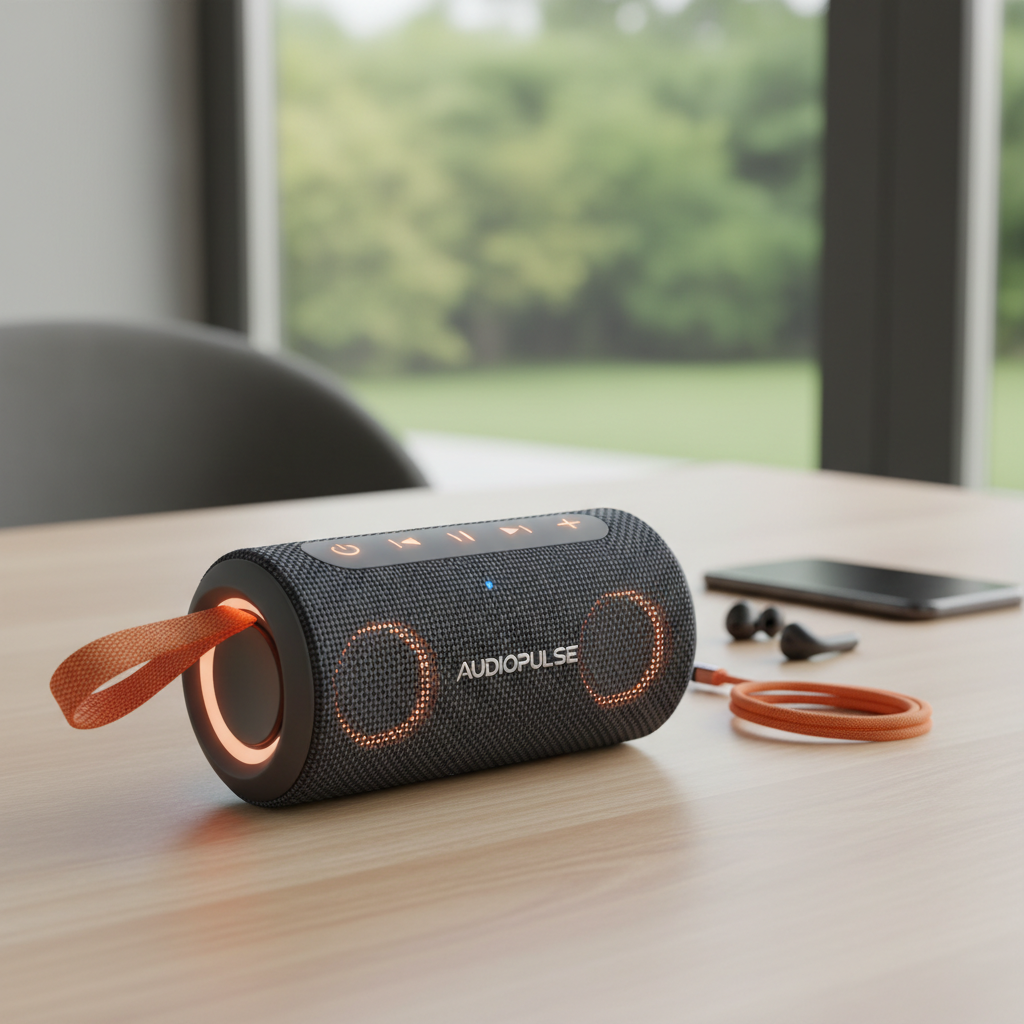
Portable Speaker

Portable Speaker

$79

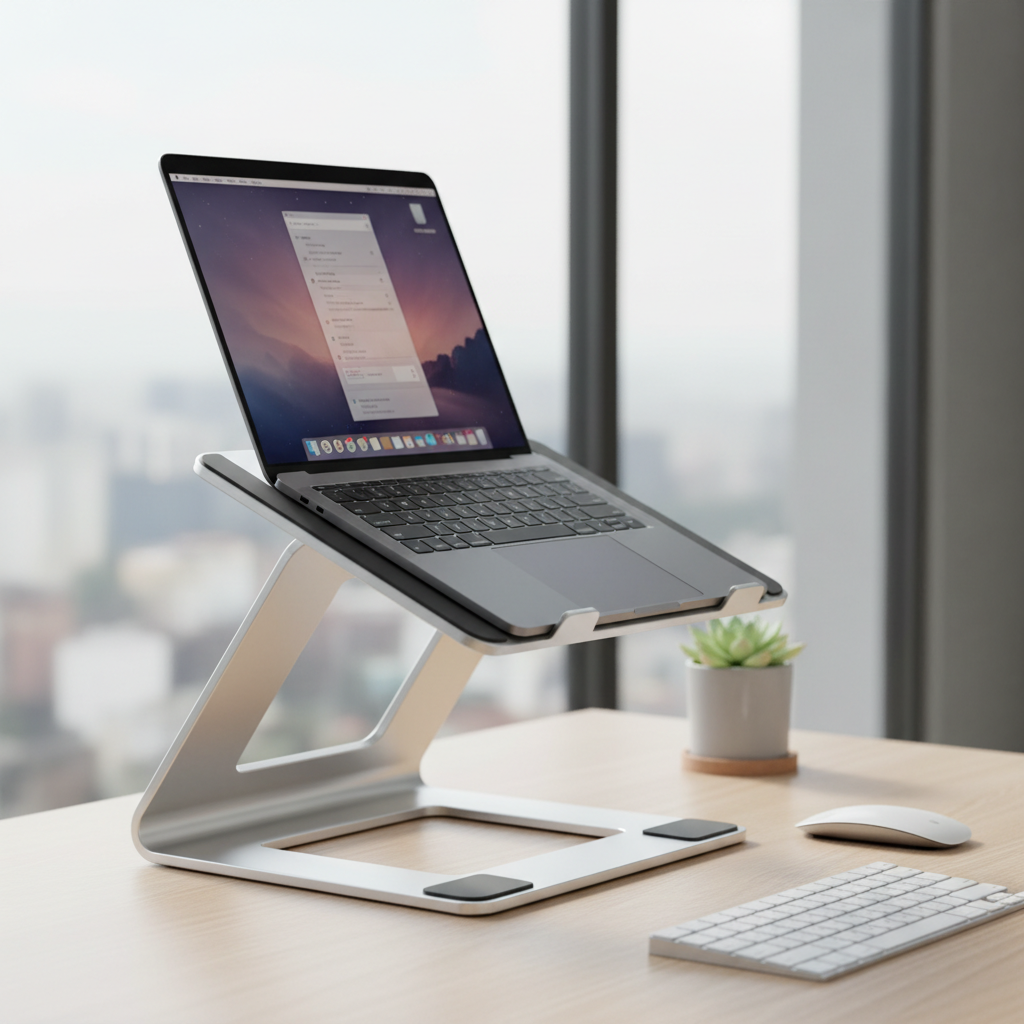
Laptop Stand

Laptop Stand

$129

{/* Hero */}

Hero

16:9 · Landing pages, section backgrounds

Hero background

Build the Future

Start your next project with AI-powered tools

Hero background

Your Headline

`} language="html" /> {/* OG Image */}

OG Image

1200:630 · Social sharing, Twitter/LinkedIn cards

twitter.com
OG Image Preview

banatie.app

AI Placeholder Images Guide | Banatie

Generate AI placeholder images for development...

`} language="html" />
OG images are cached by social platforms. Change the prompt to regenerate.
{/* Features */}

Features

1:1 · Feature grids, benefit sections, icons

Lightning Fast

Lightning Fast

Deploy in seconds with our global CDN

Secure by Default

Secure by Default

Enterprise-grade security built in

Easy Integration

Easy Integration

Works with your existing stack

Lightning Fast

Lightning Fast

Deploy in seconds with our global CDN

`} language="html" />
{/* File-based Workflow */}
File-based Workflow

Need files in your repo? Here's how to download generated images.

When to Use Files

  • Next.js/React projects with local image imports
  • Version-controlled placeholder assets
  • Offline or CI/CD environments

Generate via API

Request:

Response:

Open cdnUrl in your browser, save the image, and add it to your project's assets folder.

For full API reference, see{' '} Generations API .

); }